# Training Calendar
Canonical HTML: https://effortsignal.com/features/training-calendar/
Last content update: 2026-09-11
A training week is more than a list of workouts. Calendar keeps the sessions you intend to do, the activities you actually record and the things that change your plans together. Build a week, move a session when life intervenes, then review what happened without losing the original plan.
These examples use synthetic training and calendar data for October 2026 and the week of 14–20 September; event locations and forecast values are illustrative.
Plan a month at a glance
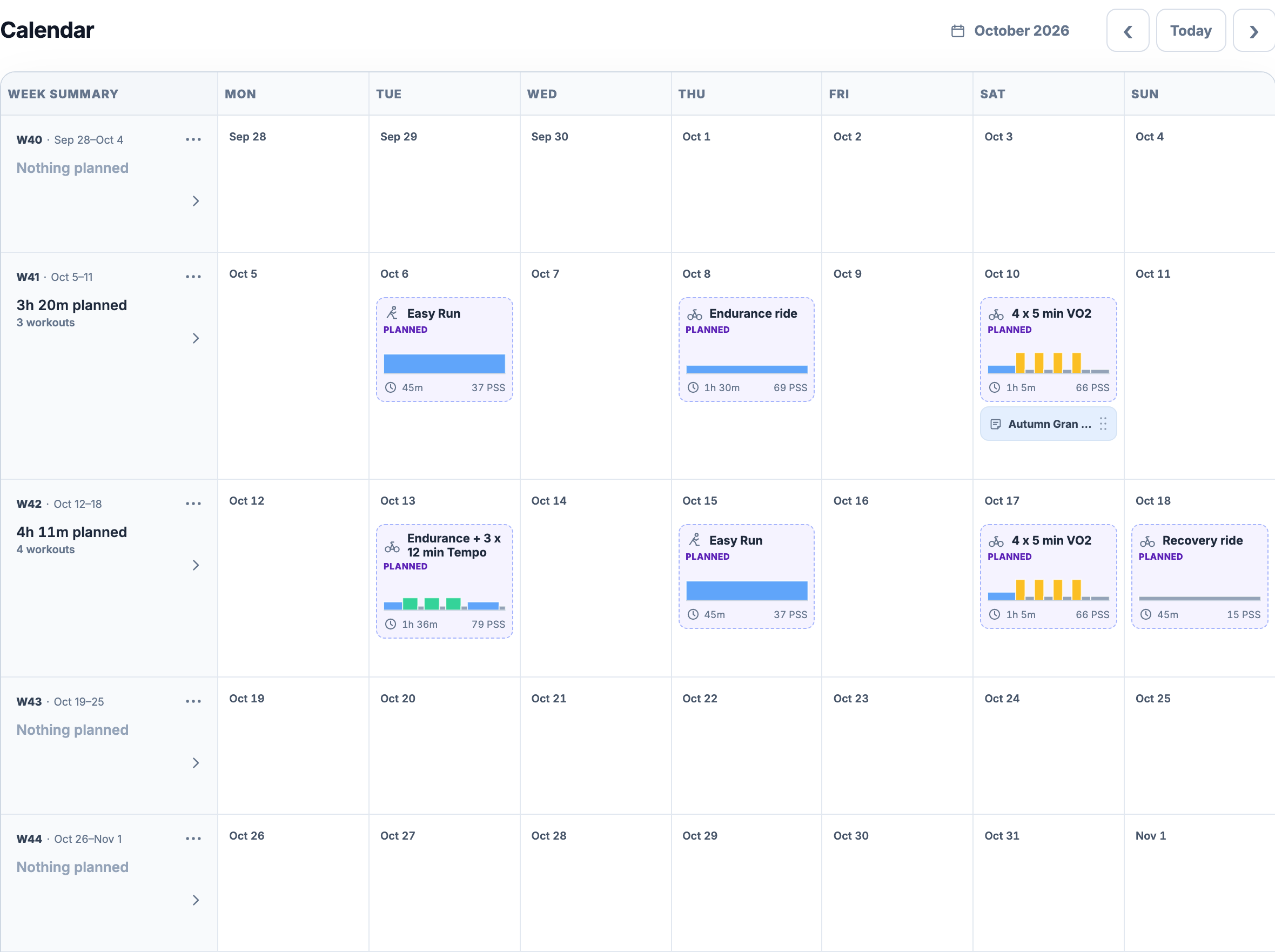
Open **Calendar** in the **web app**. On desktop, it opens as a **month grid**. Each row is a complete week, with seven dated columns and its own **Week Summary**. Seeing several rows together helps you compare the amount of training planned across weeks and leave room around events, travel or days off.
Use the arrows beside the month name to move between months, or select the name to choose a month directly. You can also scroll through nearby weeks. **Today** brings you back to the current week. The first and last rows include dates from neighbouring months so a week is never split in two. Changing the month changes what you see; your saved entries stay on their dates.
[](/marketing/product/catalog-calendar-month-desktop.png)
The full October grid: one week has 3h 20m planned, the next has 4h 11m. Every row keeps its own summary and actions. On a small screen, scroll across this desktop screenshot to inspect the full grid.Enlarge the month view
Work with a week in context
Each week remains part of the same calendar. Add a session to a dated day, open a workout card or use the menu beside that row's summary. On a phone, the calendar focuses on **one week at a time**, with previous- and next-week controls and the days arranged vertically.
You can browse both history and future dates; planning is not limited to a fixed number of weeks ahead. The calendar uses your account's timezone and week-start preference. Its **Settings** control changes where Week Summary appears. For units, timezone and the start of the week, use [Account and Training Preferences](/features/account-preferences/#units).
[](/marketing/product/catalog-calendar-planning-week-desktop.png)
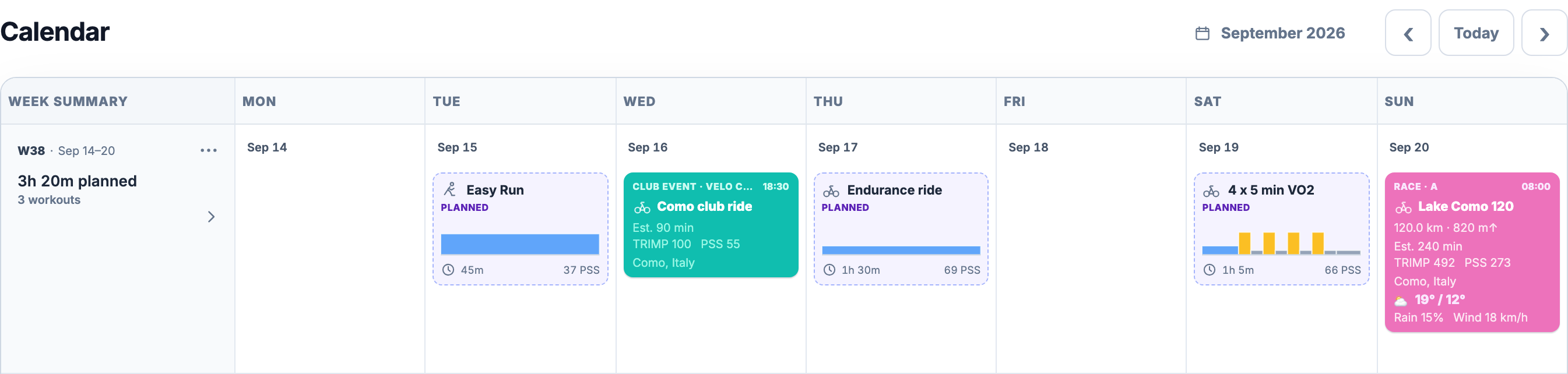
Three saved workout plans make up 3h 20m of training. The club ride and race keep their own times, locations and estimates beside the dates. A Planned label distinguishes a workout prescription from a completed recording.Enlarge the planning week
Start with the day, then choose what belongs there
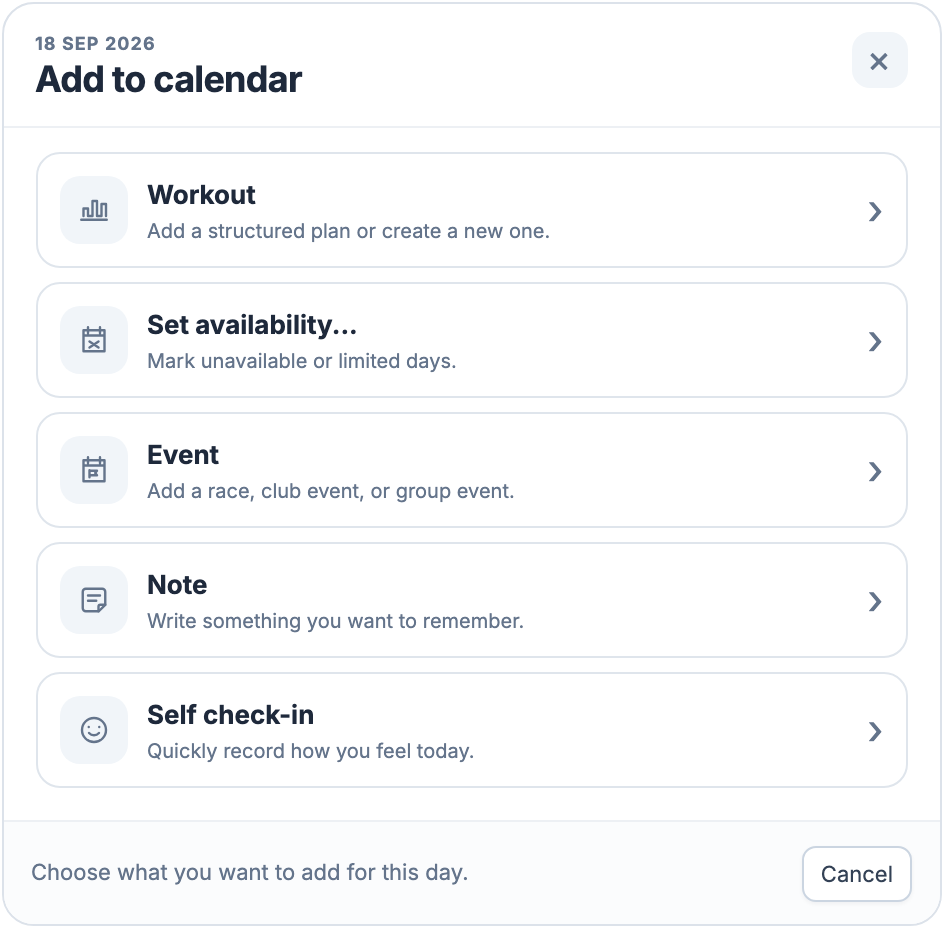
Use a day's **Add** control. It appears over the unused part of the day on desktop and stays visible on phones; keyboard focus also reveals it. The chooser offers **Workout**, **Set availability...**, **Event**, **Note** and **Self check-in**. Each creates a different kind of calendar entry, so an appointment or a feeling does not become a recorded workout.
[](/marketing/product/catalog-calendar-add-menu-desktop.png)
The selected date carries into the next form. A day can hold several workouts or pieces of context; an existing daily check-in opens for editing.Enlarge the day menu
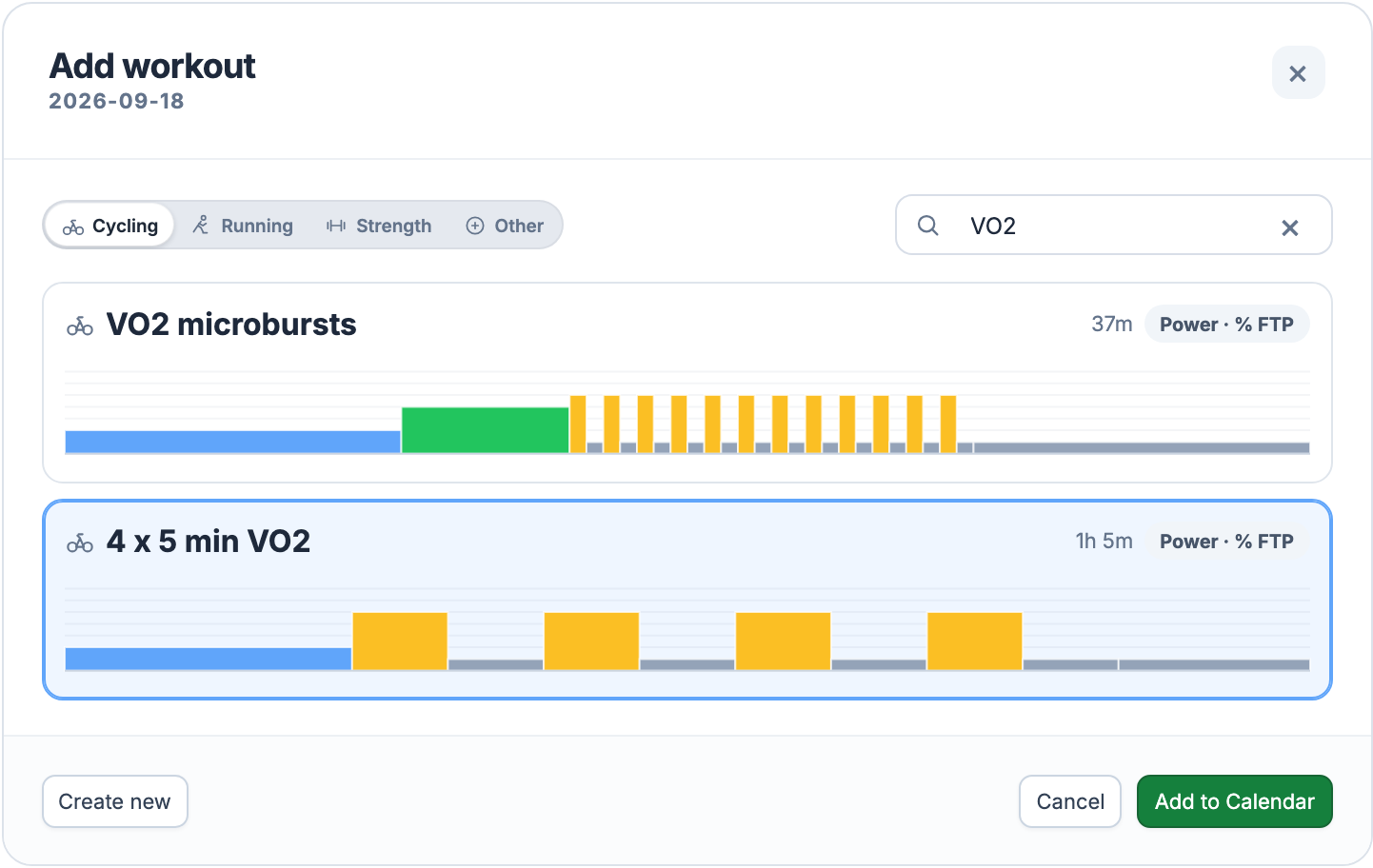
Choose **Workout** to browse saved cycling, running, strength or other sessions. Filter by sport, search by name and inspect the duration, target type and compact workout profile before selecting **Add to Calendar**. To repeat one session on another date, add it from the library again.
[](/marketing/product/catalog-calendar-workout-chooser-desktop.png)
The chooser shows the current library version. An older calendar plan keeps its own saved duration and structure; searching or selecting here does not add a new occurrence until you confirm.Enlarge the workout chooser
If the session does not exist yet, **Create new** opens the builder for the selected sport. Save it before placing it on the calendar. [Workout Planner](/features/workout-planner/) covers blocks, repeats and targets; [Workout Library](/features/workout-library/) covers finding and organising reusable sessions. You can also plan from a workout's detail page, choosing a date and an optional comment for that particular occurrence.
Open the exact workout you planned
A scheduled workout is a **snapshot** of the prescription at the time it was added. Later edits to the reusable library workout do not silently rewrite that dated plan. This keeps an earlier training week understandable even after you improve a favourite template.
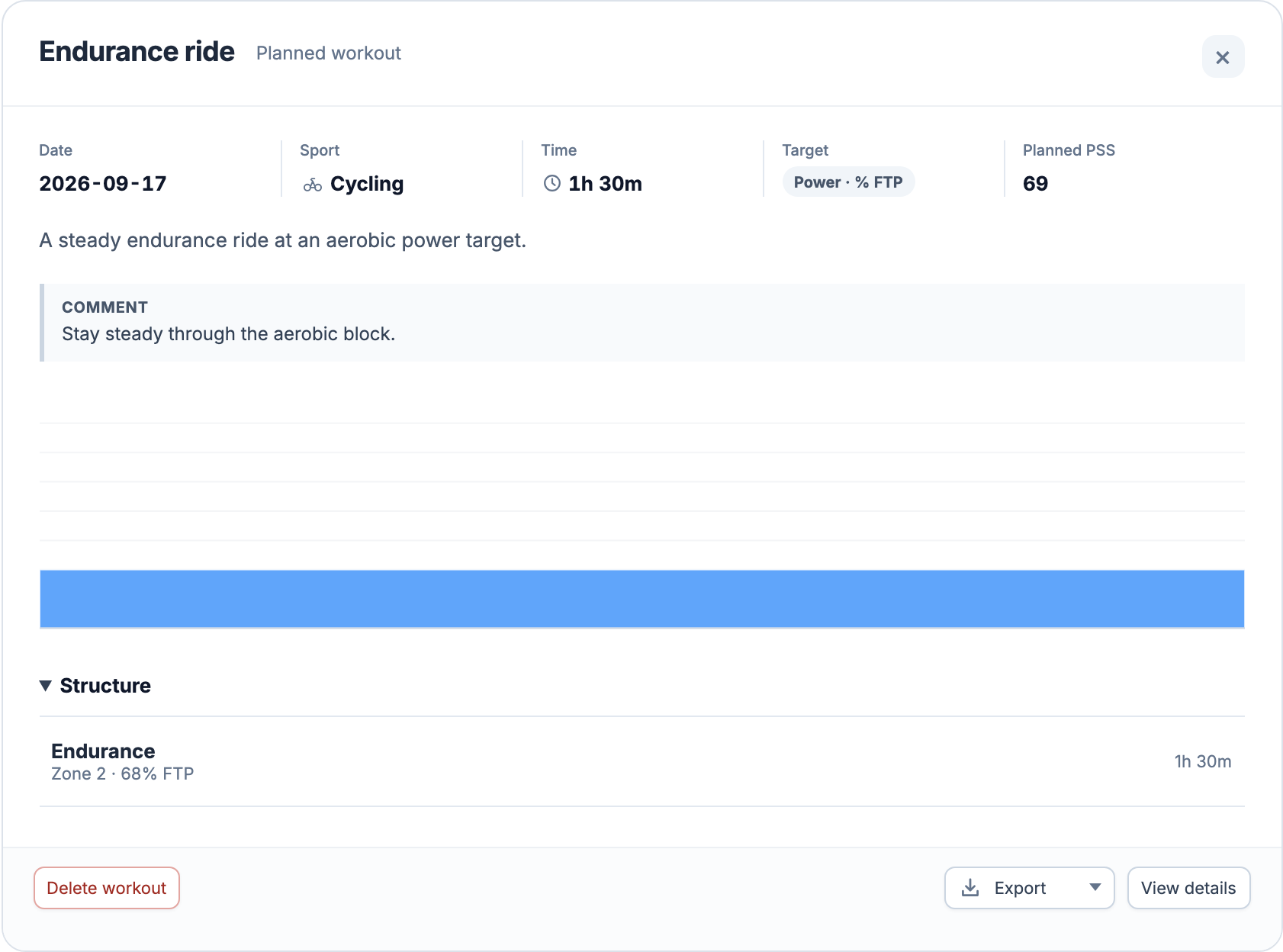
Open a planned card to inspect its date, duration, target, available planned load, description, profile and **Structure**. A placement comment belongs to that occurrence. **View details** opens its full page. The profile describes the prescribed blocks; it is not a prediction of the power or heart rate you will actually record. [Training Zones and Thresholds](/features/training-zones/) explains the settings behind supported targets and calculations.
[](/marketing/product/catalog-calendar-workout-preview-desktop.png)
The preview keeps the saved prescription and actions together. Deleting this occurrence has its own confirmation; the reusable library workout remains available.Enlarge the scheduled workout
Move a session, or reuse the whole week
On desktop, **drag a planned workout onto another day** to move that occurrence. The highlighted destination makes the date change visible. Moving a plan does not move a recorded activity or change the reusable workout. If the destination conflicts with saved availability, the app names the restriction and asks for an explicit **Move anyway** decision.
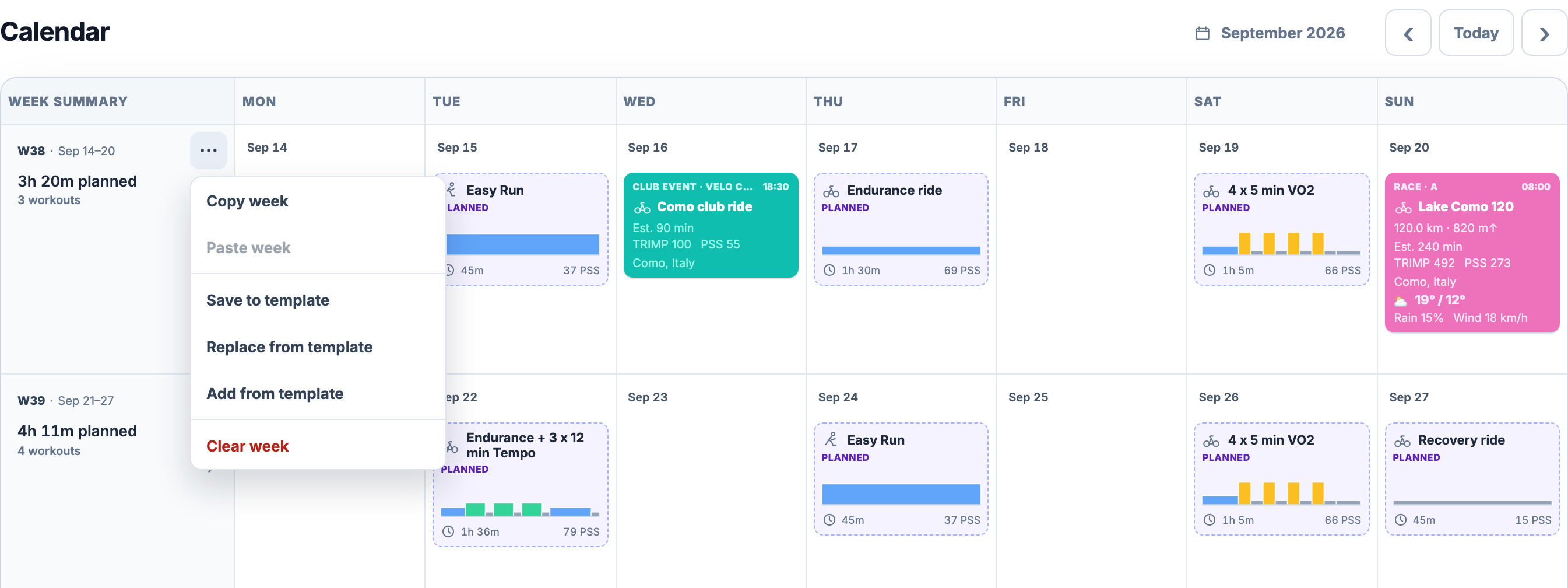
For a whole week, open the **three-dot menu beside Week Summary**. **Copy week** copies its planned workouts, preserving their weekday positions and saved prescriptions. Move to a different week and choose **Paste week**. The confirmation names the source, destination and number of plans; existing target-week workouts are kept. Completed activities, notes, check-ins and events are not copied as workout plans.
[](/marketing/product/catalog-calendar-week-actions-desktop.png)
The open menu belongs to 14–20 September, beside its Week Summary. All six actions are visible over the calendar. Paste becomes available after copying a different source week; the confirmation explains what will be added.Enlarge the week actions
**Clear week** is a different operation: after confirmation it removes that week's scheduled workouts, including their links to completed activities. The activity recordings, events, notes and check-ins remain. To remove just one plan, open its preview and use **Delete workout**. In both cases, read the confirmation before removing the plan.
Keep a useful week as a template
Use **Save to template** to keep a reusable version of a calendar week's workout plans. Or open **Week Planner** from the workout library and arrange sessions across seven days. A template saves the prescriptions, weekdays and within-day order, so it can be placed on another set of dates without recreating each session.
Back in Calendar, **Add from template** keeps existing plans and adds the template's workouts. **Replace from template** previews which eligible unmatched plans will be removed and what will replace them. It preserves matched plans and completed activities, along with events, notes and check-ins. This is different from Clear week, which can remove the plan links as well.
Review the exact dates, additions, removals and availability conflicts before applying. A week template supports up to **100 workout placements**. Editing or deleting the reusable template does not rewrite calendar occurrences already created from it. [Week Planner](/features/week-planner/) explains building, saving and applying templates in detail.
Read the weekly summary, then open the detail
**Week Summary** changes with the date. A future week shows planned duration and workout count. A current week shows completed training and what remains; a past week distinguishes unfinished work from work still ahead. Plan progress is weighted by planned duration, so a short recovery ride and a long endurance session do not count equally. Plans skipped because of availability remain visible but are not counted against plan completion.
When the required history exists, the summary adds Fitness (**CTL**) and Form (**TSB**). A completed week's duration comparison uses another completed week, rather than treating the current partial week as a finished result. These compact values help you scan the calendar; select the summary's evidence area to open **Week Details**.
[](/marketing/product/catalog-calendar-week-details-desktop.png)
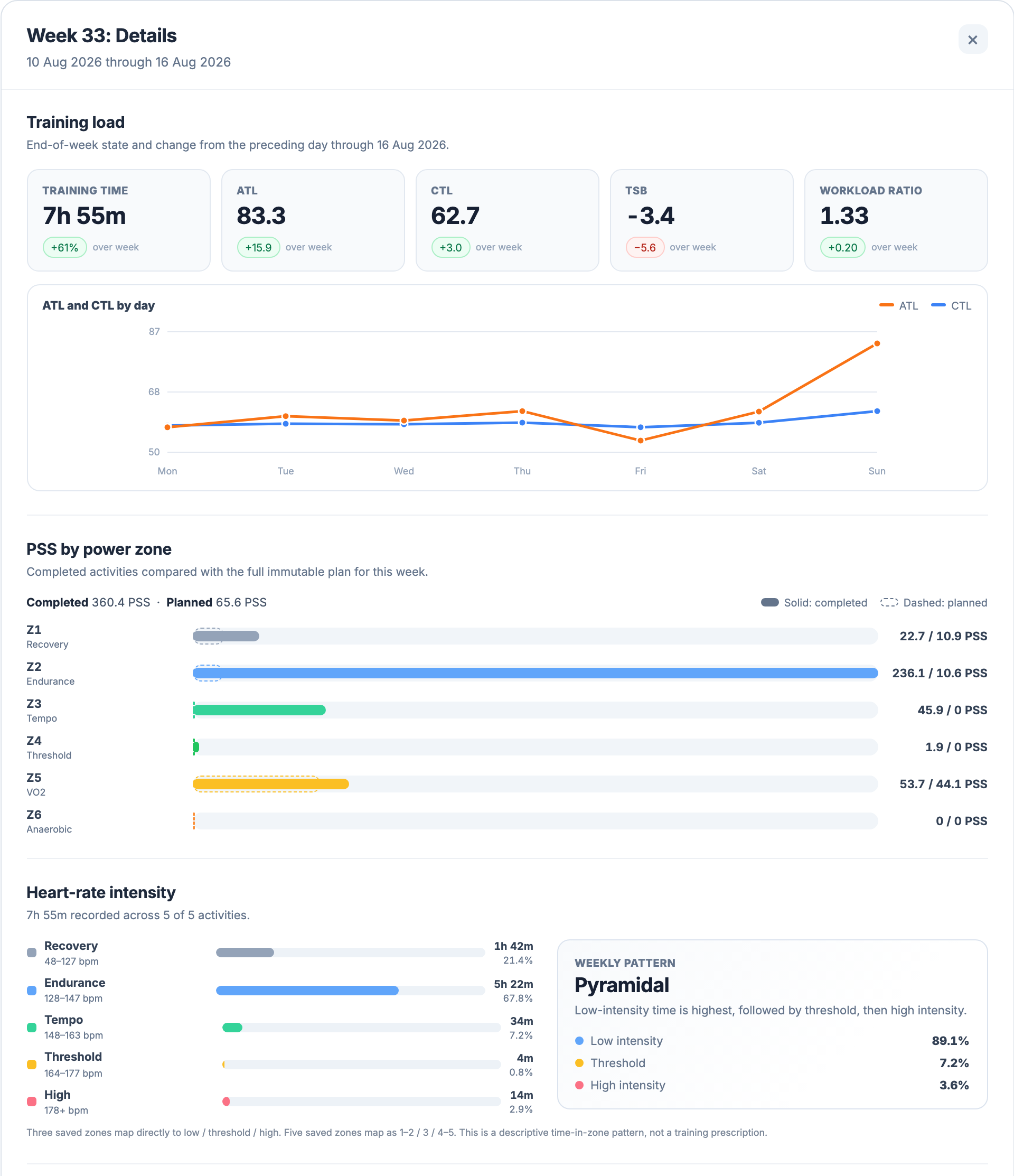
A completed week has more to inspect than its total hours. The illustration focuses on load and intensity. Scroll within Week Details to continue through the heart-rate breakdown and the sport totals below.Enlarge Week Details
The detail window brings together:
- **Training time and load:** the week's recorded duration, ATL, CTL, TSB and workload ratio, with available changes and a daily graph. See [Training Load](/features/training-load/) for what these estimates mean.
- **PSS by power zone:** planned and actual power-based load share a scale. Dashed planned bars and solid actual bars make their different roles visible.
- **Heart-rate intensity:** recorded time in your saved zones, followed by a description of the distribution, such as Pyramidal or Polarized when the data supports a classification. These labels describe the recorded pattern; they do not prescribe the next week.
- **Sports:** activity counts, duration, moving time, distance, elevation and available TRIMP/PSS. Coverage matters: a partial total does not imply that every activity had the required sensor data.
For a longer view, use [Training Volume](/features/training-volume/) to group history by week or month, or [Progress](/features/progress/) to compare periods and seasons. [Training Trends](/features/trends/) connects recent signals, recovery and the longer load history.
Connect the plan to the activity you completed
Imported activities appear on their recorded dates, with available duration, metrics and a profile of the recording. Open a completed card for [Activity Analysis](/features/activity-analysis/). Use [Device Sync](/features/device-sync/) or [Import and Export](/features/import-export/) to bring recordings into the account.
An activity appearing beside a plan does not automatically prove it fulfilled that plan. On desktop, drag the activity onto the planned workout, or the plan onto the activity, and confirm the named pair. Supported match suggestions also require confirmation. A confirmed plan shows **Completed** and gains **Plan vs completed** in its preview and detail page.
Review the linked activity, planned versus actual duration and load, and the available execution evidence. **Unmatch** removes the relationship if you linked the wrong recording. Detailed step and target analysis depends on the recorded streams; missing data is not a failed effort. Basic comparison totals are **Free**, while detailed workout performance evaluation is **Pro**. The [Planned vs Completed guide](/features/planned-vs-completed/) explains matching, coverage, results and Retry states.
Events have a separate matching relationship. One recording can fulfil one scheduled workout and one event; confirming an event match does not turn its earlier load estimate into a measurement.
Keep how you felt beside what you did
**Self check-in** records your own assessment of the day, optional subjective context and measurements. Open the same day's entry to update it. Your self-reported condition is distinct from the calculated [Readiness](/features/recovery-readiness/) score.
Available daily HRV, resting heart rate and sleep appear beside the date. A measurement entered in a check-in takes priority for that field; connected sources can supply the remaining fields according to your source preferences. The metric tooltip identifies its source. A missing value stays missing.
Use a **Note** for anything that explains the day: a changed meeting point, equipment choice or why you shortened a session. Notes support text, colour, editing and moving to another date. Their explicit **Move** action lets you select a day; desktop dragging is also available. A note or check-in does not create training load. See [Check-ins and Notes](/features/check-ins-notes/) for the fields and daily measurement rules.
Plan the event as well as the workouts around it
Add an **Event** for a Race, Club Event or Group Event. Keep its sport, start time, name, location, links, logistics and preparation notes together. A race can have **A, B or C priority**; a club event can retain a club name and URL. These are entries in your personal calendar, not a shared team-management system.
An attached **GPX** can provide route distance, elevation and a start location. For eligible dates within the **16-day forecast window**, supported weather shows temperature, rain probability and wind. Missing weather means no forecast is available, rather than a promise of clear skies.
Optional duration and expected heart rate can produce an estimated **TRIMP**; supported cycling power and FTP inputs can produce estimated **PSS**. The card labels these values **Est.** They help describe the planned event and do not enter completed CTL/ATL history before an activity is recorded. [Events and Weather](/features/events-weather/) covers the event fields, route, forecast and load-estimate requirements.
Mark the days when the plan needs limits
Choose **Set availability...** for travel, work, illness, injury, vacation or other commitments. Set the date range and choose **Unavailable**, **No structured training** or **Limited**. Limited availability needs at least one restriction: sport, daily duration or intensity. For example, a 60-minute limit makes a planned 90-minute ride a conflict worth reviewing.
Restrictions shade the affected days and stay visible alongside the workouts. They do not automatically delete or move sessions. Adding or moving a conflicting workout asks for an explicit decision; a conflicting week paste lists the affected incoming plans before **Paste anyway**. Overlapping restrictions use the stricter applicable limits.
Open an availability marker to edit, extend, delete or **End early**. Ending a period can restore full availability or continue with a lighter restriction; the confirmation offers a short-lived Undo. [Availability and Blocked Days](/features/availability/) explains these changes and their effect on plan completion.
Send the saved plan when you are ready to train
Scheduling a session or applying a week does not send anything to a device automatically. The planned workout preview offers **Export** for compatible file formats and supported **Send to** actions when available for that saved occurrence. Delivery uses the dated snapshot, not a newer revision of the library template.
[Import and Export](/features/import-export/) explains file options; [Device Sync](/features/device-sync/) covers supported connections and delivery status. The available targets depend on the workout and connection, so the calendar does not promise delivery to every provider or device.
Start planning before your history is complete
Calendar, the workout builder and library, copying workouts and weeks, events, blocked days, and supported export and device delivery are included in **Free**. Current terms and the Pro execution-analysis distinction are on the [pricing page](/pricing/).
Saved workouts are enough to begin planning. Imported recordings supply completed totals; health data and compatible sensors determine which measurements, zones and load values can appear. An empty week is not the end of your history. Loading, a failed request and missing sensor data have different meanings; use the visible **Reload** or **Retry** action when offered rather than reading an unavailable total as zero.
All Pro features are free through January 31, 2027. No credit card or automatic charges. After Early Access, keep using Free or choose Pro. [See Free and Pro plans](/pricing/).